

How To Disconnect iPhone From MAC- The Best Guide On The Internet –
Apple’s ecosystem is so seamless and unique that all Apple devices always communicate with each other in one way or another. The unique interdependence allows your MACS and iPhones to work together perfectly. However, what if you don’t want them to work together? Calm Down! You can always disconnect your Mac from your iPhone and use them separately. So, today in this article, I’ll be jotting down 7 ways to disconnect iPhone from MAC.
How iPhone & MAC Are Connected?
Before heading to the main topic, we first need to understand how are the devices connected with each other. First of all, the most basic way of getting your iPhone and MAC connected is through iCloud, something that happens when you initially set up your Mac and iPhone. Whenever you log in with your apple id on your iPhone and Mac, both devices connect instantly. In the same way, iCloud allows you to sync content from apps on your Mac and iPhone with one another, backup pictures from your iPhone to be visible on the Mac, and other files that you may have backed up with iCloud Drive.
Different Ways To Connect iPhone To MAC
There are many conventional ways to connect both devices. Some of them are mentioned down below:
- You can use a USB-to-Lightning cable to transfer files from a Mac to the iPhone or the other way around.
- AirDrop functionality offered by Apple is a great feature that lets people move files between the two devices over Wi-Fi and Bluetooth without relying on a physical connection.
- iCloud Sync allows users to enable Handoff and Continuity features. When this feature is properly set up, it will let you start something on the Mac and pick it up on the iPhone and vice versa. In this way, you can simply sync iPhone with MAC. This sync feature also lets you copy text and content from one device and paste them over to another Apple device seamlessly.
- Apple’s Continuity Camera also allows users to scan something from their iPhone and insert it directly into an email, webpage page, or an app on a Mac.
- iPhone calls on a Mac
- SMS forwarding from iPhone to Mac
- Connecting your Mac to your iPhone’s Personal Hotspot
- Pairing the two devices over Bluetooth.
You can also read: Apple May Rollout New Updates and More Products in 2022
7 Ways To Disconnect iPhone From MAC
There are many ways to disconnect your Mac and iPhone. I am going to jot down the 7 Best ways to disconnect Apple iPhone From MAC. Let’s get started:
1: Remove Mac from your Apple ID
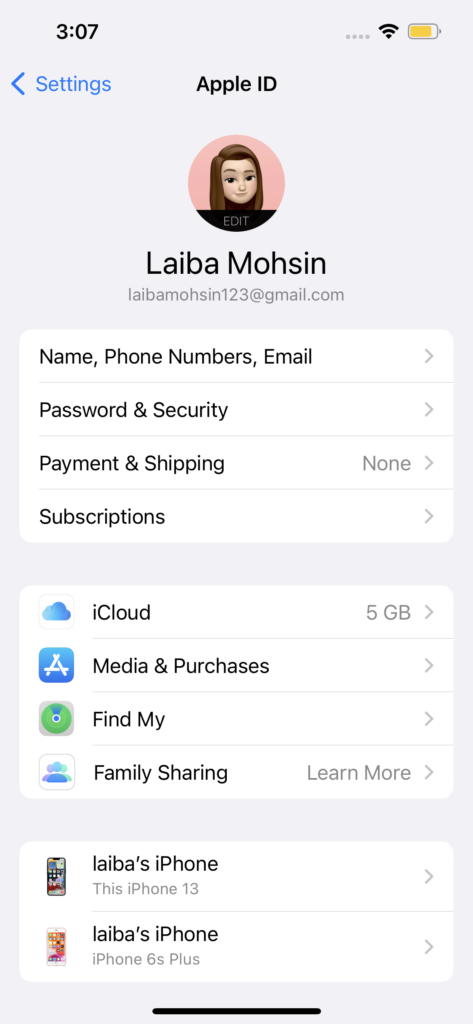
In order to separate your Mac from your iPhone entirely, the best way is to remove the macOS device directly from your Apple account. Follow the steps written below:
- Open the Settings app.
- Tap on your Apple ID card at the top.
- Scroll down and locate your Mac or MacBook from the list of devices at the bottom.
- Tap on Remove from the account.
- You will see a prompt on the screen asking you to confirm.
- Tap on Remove inside this prompt.
Apple will remove the Mac from your account and it will no longer be paired with your iPhone. However, If you don’t want to remove a Mac entirely from your Apple account and want to unpair some aspects of the iPhone from it, then you can use the methods written below.
2: Disconnect your Mac via Bluetooth
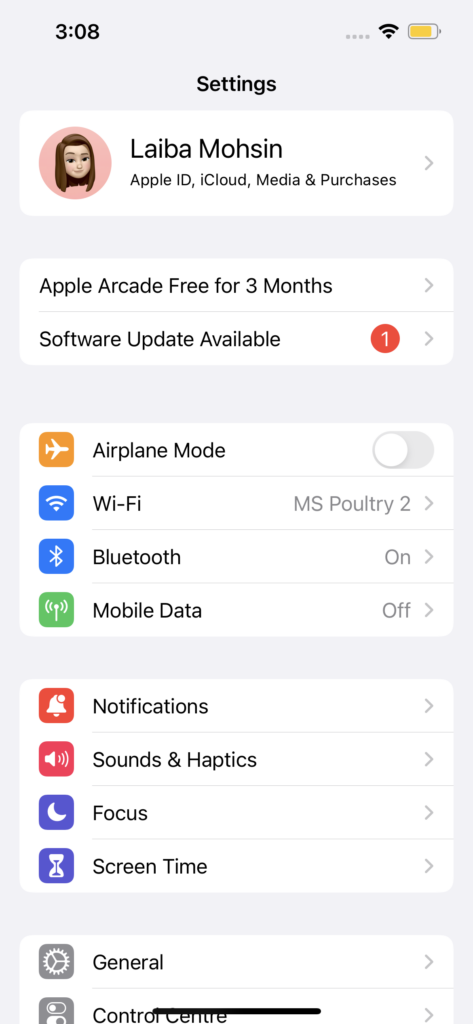
- To disconnect your Mac from your iPhone via Bluetooth, open the Settings app on iOS
- Select Bluetooth
- Turn on the Bluetooth toggle at the top.
- If you can locate your Mac from the list under “My Devices”, tap on the i icon adjacent to it.
- Tap on Forget This Device.
- Tap again on Forget Device in the prompt that appears at the bottom.
In this way, your Mac will be removed from the list of previously paired Bluetooth devices on your iPhone.
3: Disable phone calls on Mac
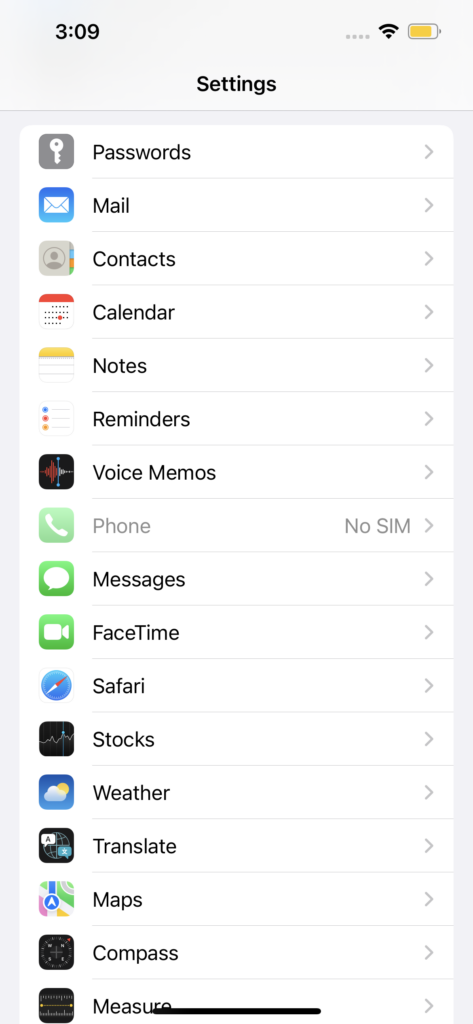
We all know that Apple allows users to make and receive phone calls from their iPhone directly on a Mac. This only happens when both your iPhone and Mac share the same Apple ID, so, you can disable this feature individually if you don’t want to remove either of these devices from your Apple account using method 1 also. However, if you want to disable phone calls from reaching your Mac then follow the steps written below:
- Open the Settings app
- Select Phone.
- Inside Phone, tap on Calls on Other Devices.
- Turn off the toggle adjacent to your Mac under “Allow Calls On” to disable the call forwarding feature on the selected device.
- You will still be able to make and receive phone calls on other devices you may have enabled on this list. So, if you want your calls to only be answerable on your iPhone, you can disable the Allow Calls on Other Devices toggle at the top.
4: Turn off Text Message Forwarding to Mac
In order to disable Text Message Forwarding, follow the steps written below:
- Open the Settings app on your iPhone
- Select Messages.
- Inside Messages, scroll down and tap on Text Message Forwarding.
- Turn off the toggle adjacent to your Mac.
In this way, it will stop your Mac from receiving SMS messages that are delivered on your iPhone.
5: Enable Notes to save locally on iPhone
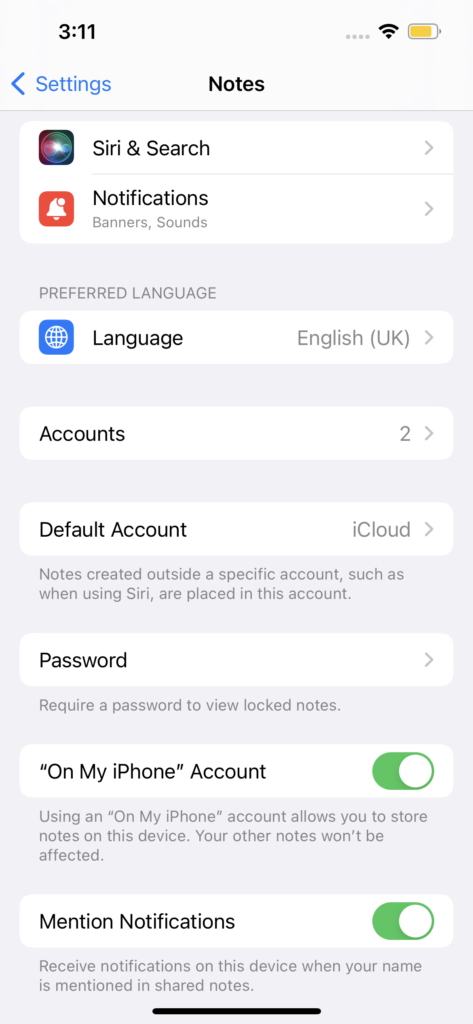
When you use the same Apple id on your iPhone and Mac and have turned on iCloud for all the apps and services on your device, then all the notes that you create on the Mac also get copied over to the iPhone and vice versa. However, if you want to keep your iPhone notes within the device itself without syncing them to the Mac, you will need to save them locally on iOS. To disable notes syncing over to the Mac do the steps written as follows:
- Open the Settings app
- Select Notes.
- Inside Notes, turn on the “On My iPhone” Account toggle.
It will make sure all the notes that you create on your iPhone stay saved on this device and aren’t accessible on any other device including your Mac.
6: Disable Handoff on iOS
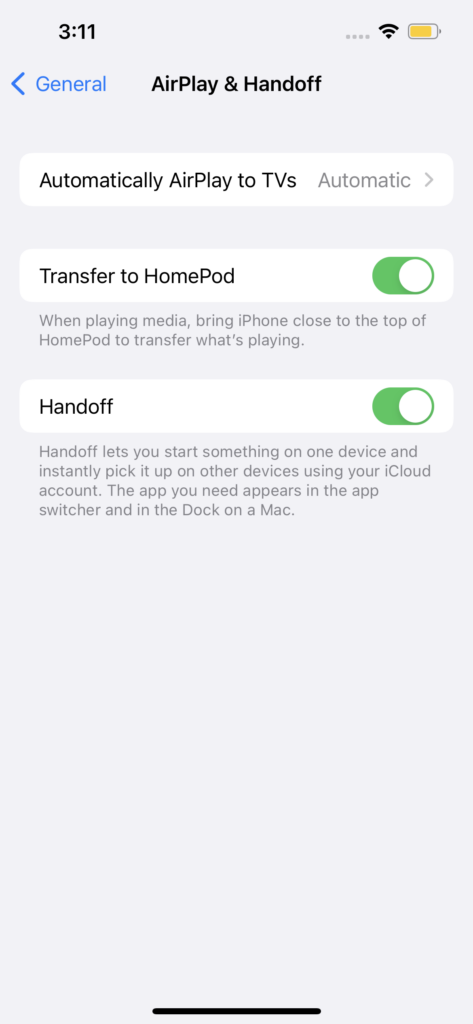
Apple Handoff is a feature that lets you start a task on your iPhone and continue it on your Mac and vice versa. If you don’t want your Mac to display an ongoing task or content from your iPhone, you can disable Handoff on iOS.
- To turn off the Handoff feature on your iPhone, open the Settings app.
- Select General.
- Tap on AirPlay & Handoff.
- Turn off the Handoff toggle.
After this, you will no longer see Handoff banners on your iPhone. In the same way, you will also not see the Handoff icon on your Mac from this particular iPhone.
7: Turn off AirDrop to prevent your iPhone from showing on Mac

Apple AirDrop is a nifty feature designed to send and receive files and content between iPhones, iPads, and Macs instantly over Wi-Fi and Bluetooth. It allows you to share files, photos, videos, audio, links, text, documents, contacts, locations, voice notes, and items available inside an app on your Mac or iPhone. However, if you don’t use Airdrop and don’t want your iPhone to show up inside the Mac when sharing files, then you can turn it off.
- Launch the Control Center
- Tap and hold on to the Wi-Fi icon or Bluetooth icon.
- Tap on the Airdrop icon.
- Select Receiving off.
This allows you to successfully disable AirDrop on your iPhone and it will no longer show up on the Finder app or Airdrop window on your Mac. It is one of the ways to unlink iPhone from MAC.
FAQs
How to fix iPhone rapid disconnects from Mac?
A solution to this issue is to stop the usbd process. Go to iPhone settings > Tap on General > Tap on Reset > Tap on Reset Location and Privacy > Confirm the passcode > Tap on Reset Settings. 3. Restart the usbd process.
How can I check where my Apple ID is being used?
you can check your Apple ID and see all the devices that are connected to the same account by accessing your iPhone’s Settings app or Mac’s System Preferences.
Why does iPhone keep connecting and disconnecting itself?
Try to clean this cable/port to see if things work and if not, you can swap the cable for a new one.
What happens if I Disconnect My Mac from my iPhone?
When you disconnect both devices, they will have separate identities and all continuity features will be lost.
How do I clean the charging port on my iPhone?
First of all, turn off your iPhone. Then, shine a light into the charging port to look for any buildup and debris. Use a toothpick to gently scrape the walls inside of the port.
iPhones and Macs are built in such a way that they work seamlessly in Apple’s ecosystem. However, there are a bunch of ways that allow you to disconnect your iPhone from your Mac. Some of them have been discussed above. I hope that it will help you out while unlinking your iPhones from your Mac. Share with us in the comment section which one is your go-to option to disconnect your iPhone from your MAC.